Connect Tactic to an AI assistant such as Claude, ChatGPT or Microsoft Copilot, then ask it about your workplace in plain language. For example, you can ask who is in the office on Thursday, book a desk, check in to a reservation or open a workplace request without leaving the chat.
Anyone whose account can use Tactic's AI features can connect an app. The Connected Apps tab only shows if AI features are turned on for your organization. If you don't see it, ask an administrator.
Watch the overview
Your office. One prompt away. This 32-second animated overview shows desk booking, team planning and workplace reports.
Watch on YouTube. This overview supplements the setup instructions below. You need Tactic AI access; available actions follow your Tactic permissions.
Connect Tactic to ChatGPT, Claude or Microsoft Copilot using the same custom-connector setup. In Tactic, go to Settings → Integrations & Apps → Connected Apps and copy your Server URL. Add Tactic in your assistant, then sign in and review the requested access. Follow the setup instructions below.
Connect an AI assistant
- Click your profile in the bottom-left and go to Settings.
- Open Integrations & Apps and select the Connected Apps tab.
- Click Copy next to the Server URL.
- In your AI assistant, add Tactic as a custom connector and paste the URL:
- Claude: go to Settings, then Connectors, then Add custom connector.
- ChatGPT: go to Settings, then Apps & Connectors, then Create.
-
Claude Code: run
claude mcp add --transport http tacticfollowed by the Server URL, then run/mcpto sign in.
- Sign in with your Tactic account when asked.
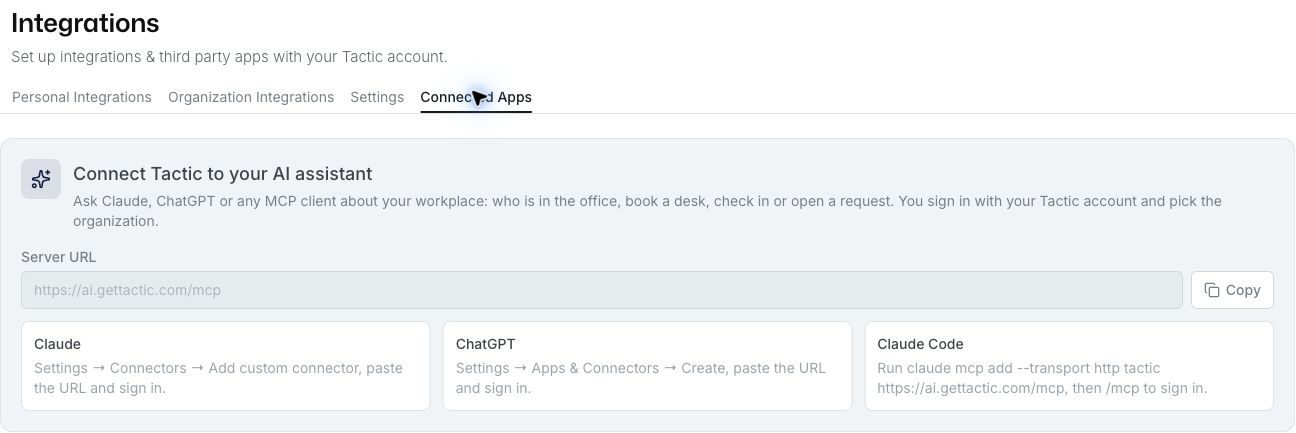
Current Server URL: https://ai.gettactic.com/mcp. Always copy the URL shown in your Tactic account. If you saved the previous mcp.gettactic.com address, use the current URL when setting up or reconnecting your assistant.
Approve the connection
After you sign in, Tactic shows a page that reads "app name wants to access your Tactic account".
- If you belong to more than one organization, choose the organization the app should use. It starts on your default organization.
- Read what the app can do on your behalf. If you allow it, it can see and manage your reservations, see where you and your colleagues are working, create workplace requests and run reports you have access to.
- Click Allow. Click Deny if you didn't start the connection.
Tactic then sends you back to the app. If the page warns that the app runs on your computer, only continue if you started the connection yourself.
What you can do in the chat
In Claude and ChatGPT, Tactic's answers can appear as interactive cards. You can reserve a desk and check in, see where colleagues work on a floor map, create workplace requests and open reports. The assistant can only do what you can do in Tactic.
See a floor map for a day
Ask something like "Who's on floor 2 on Thursday?" and Tactic shows a floor map card for that day. It shows the floor's free desks, who is booked and who has checked in, with a list of who's in underneath. If the floor has no map, the card says "This floor has no map to show."
Export a card as CSV
The floor map, report, visits, working locations and workplace requests cards each have an Export CSV button. Click it to save what the card shows as a CSV file you can open in a spreadsheet. If your assistant can't save files, the button reads Copy CSV and copies the data instead. The floor map file has one row per booked or free desk, with its area, name, status, person, start and end times, and whether they checked in.
Disconnect an app
- Go to Settings, then Integrations & Apps, and select Connected Apps.
- Under Your connected apps, find the app. Each one shows when it was connected and when it was last used.
- Click Disconnect, then confirm.
The app can no longer reach your Tactic account. You can connect it again at any time from the app.
Troubleshooting
You don't see the Connected Apps tab. AI features may not be turned on for your organization. Ask an administrator.
The approval page says your account can't use Tactic's AI features. Ask an administrator of your organization for access.
The approval page says the request expired or was already answered. Start connecting again from your AI assistant.
Something went wrong when you clicked Allow. Wait a moment and try again.
If you're still having trouble, contact support@gettactic.com and include a screenshot of the page that shows the problem.